
With the Product Descriptions feature, the Custom Product Names and Descriptions for the positions in your financial documents could be defined. They are stored in a custom object called Product Descriptions, which is linked to the Product object and supports creation in multiple languages. The values are automatically transferred to related position objects such as Quote Line Item, Order Product, Invoice Line (finblick__InvoiceLine__c), and Credit Note Line (finblick__CreditNoteLine__c).
Step-by-Step Guide to Managing Product Descriptions #
Since Product is a standard Salesforce object, the Product Descriptions related list is not included by default in the Product layout. It’s necessary to add it manually.
- Add the Related List to the Product Layout
- Navigate to any Product record in Salesforce.
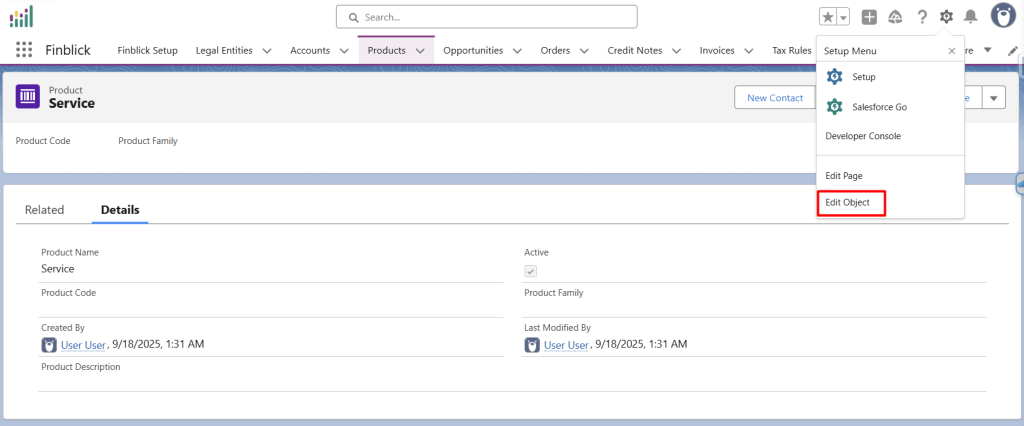
- From the gear icon, select Edit Object to open the Product object setup.
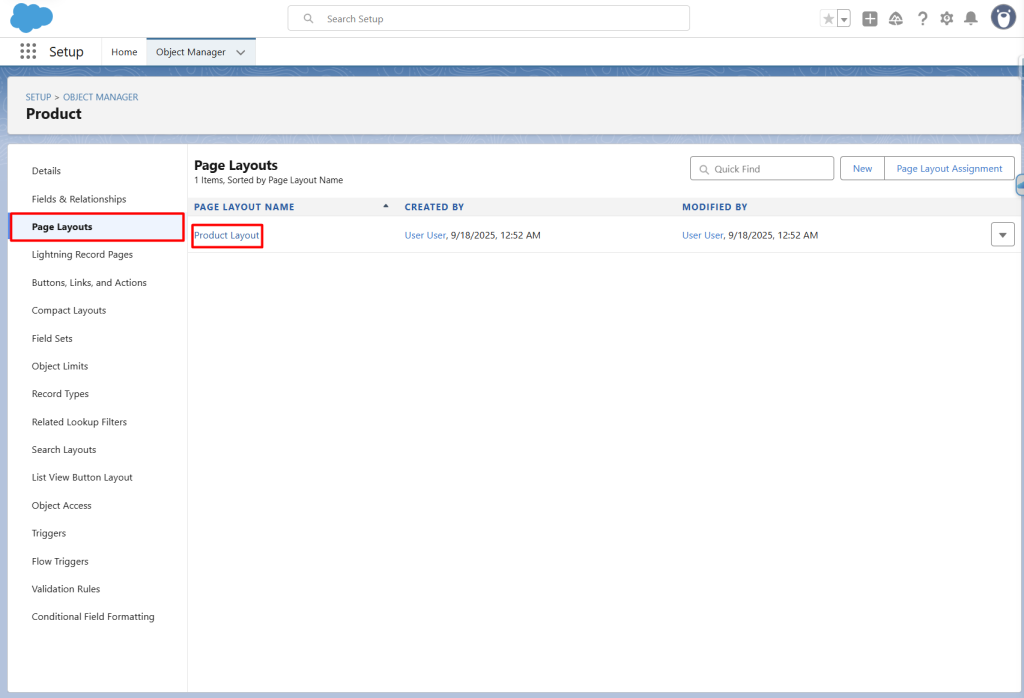
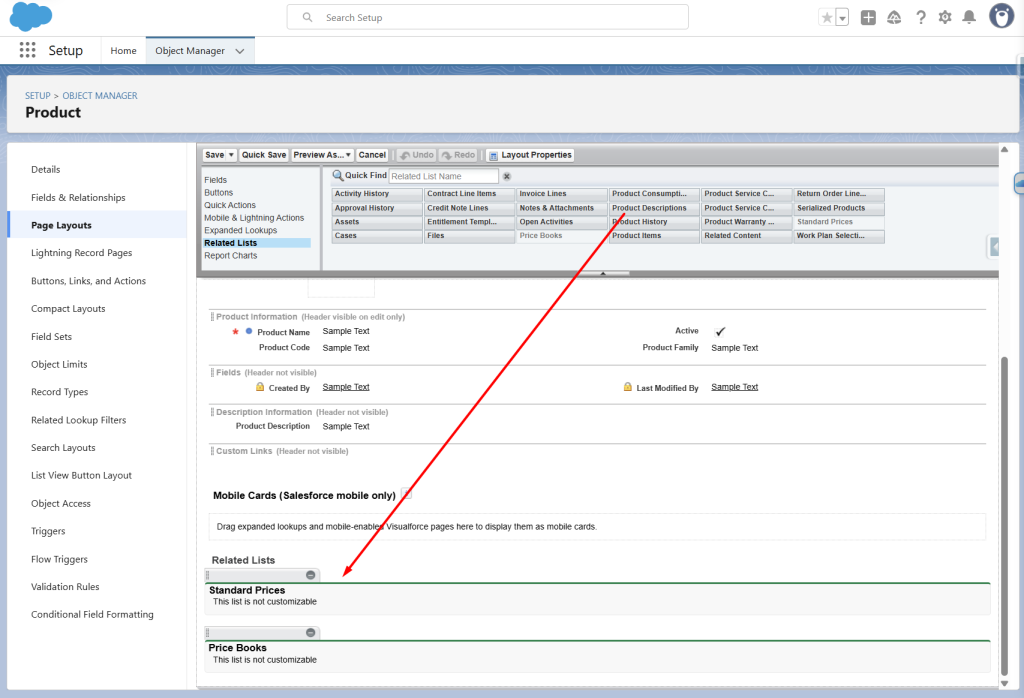
- In the Page Layouts section, edit the layout and add the Product Descriptions related list.
- Save the changes made in the page layout.
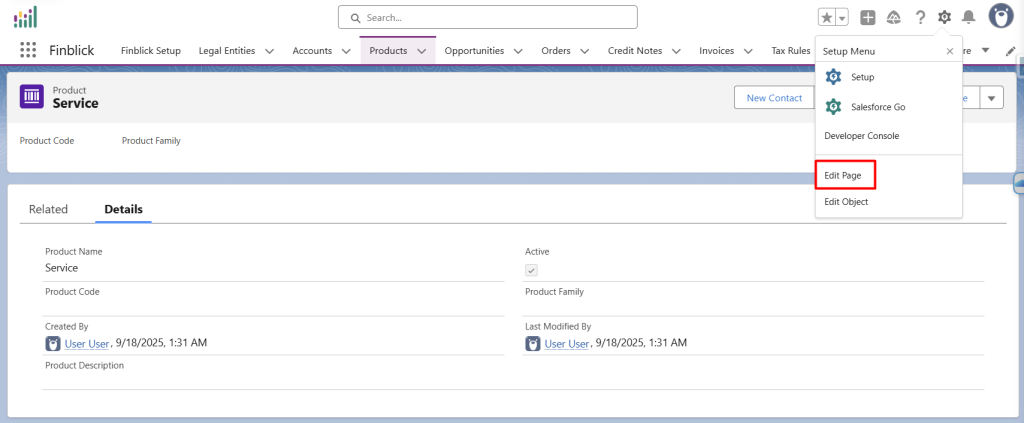
- Return to the Product record and from the gear icon select Edit Page.
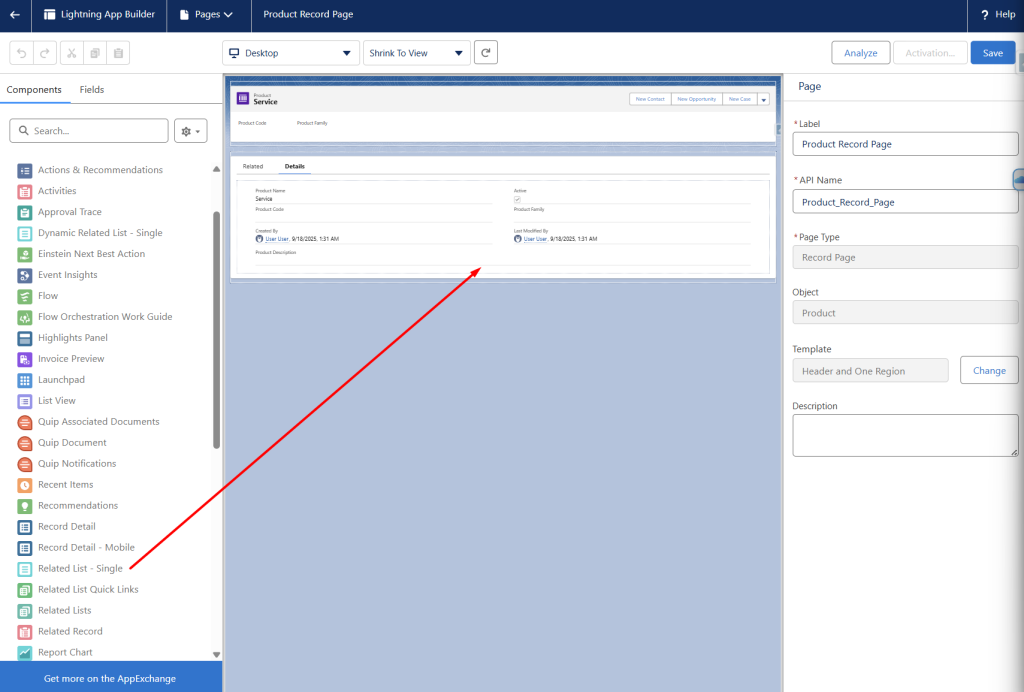
- In the Lightning App Builder, select the “Related List – Single” component from the components list in the left corner and drag it to the page layout.
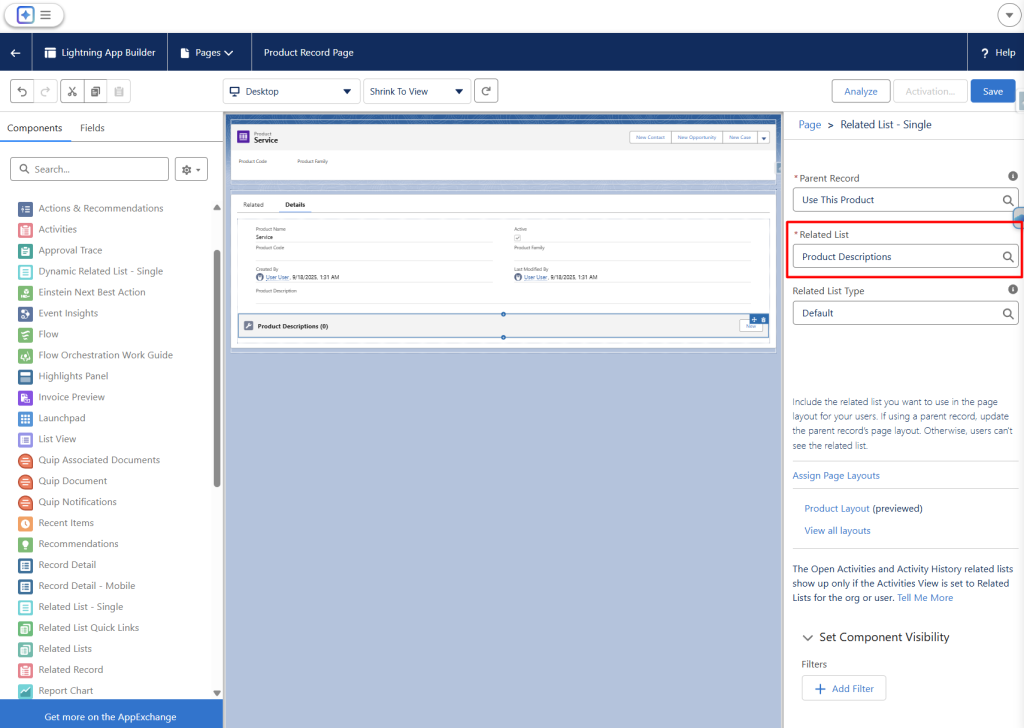
- In the right corner, find the Related List field and select “Product Descriptions”.
- Save changes and activate the page (assign it as Org Default for Desktop and Phone).
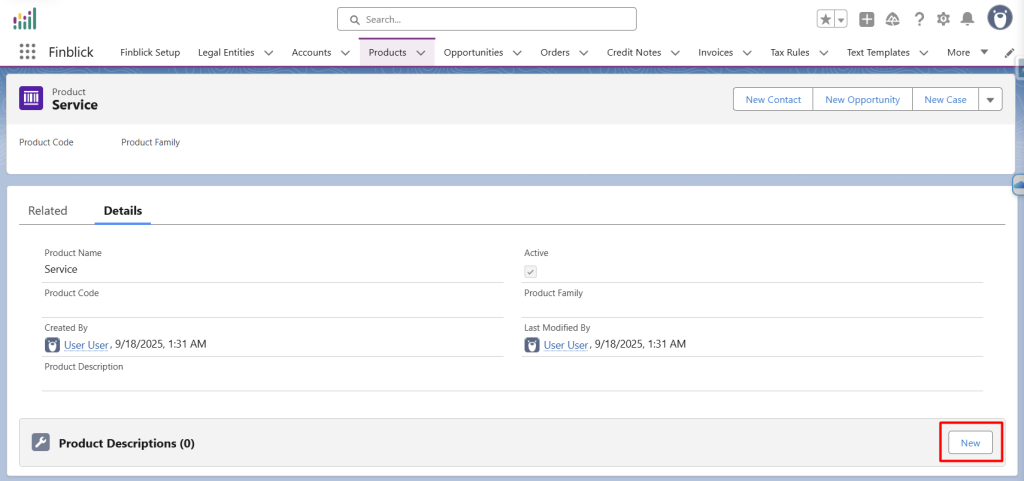
Now, the Product Descriptions related list will be visible directly on the Product records and the Custom Product Names and Descriptions could be added.
- Create Product Description Records
- In the Product Descriptions related list, click New.
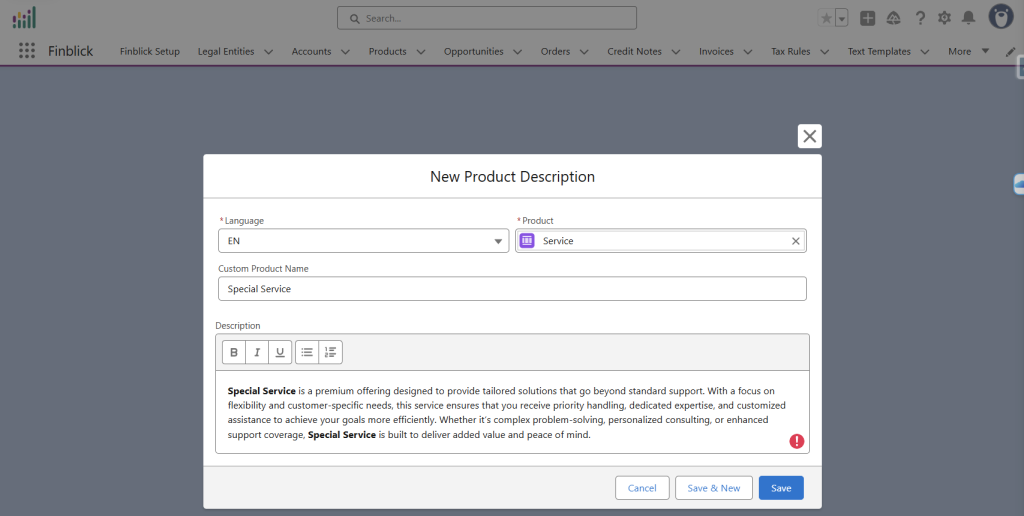
- Fill in the necessary fields:
- Language – The language for the description.
- Custom Product Name – The localized name that will appear on financial documents.
- Custom Product Description – The localized description text that will appear on financial documents.
- Save the record
- Repeat this process for each product and language that need to be supported.
- Check the automatic population of the Product Descriptions
- Open an Invoice, Credit Note, Quote, or Order record (the Invoice record will be used as an example).
- Check if the Language field on the Invoice record is populated with the appropriate value (in this example it should be populated as “EN”.)
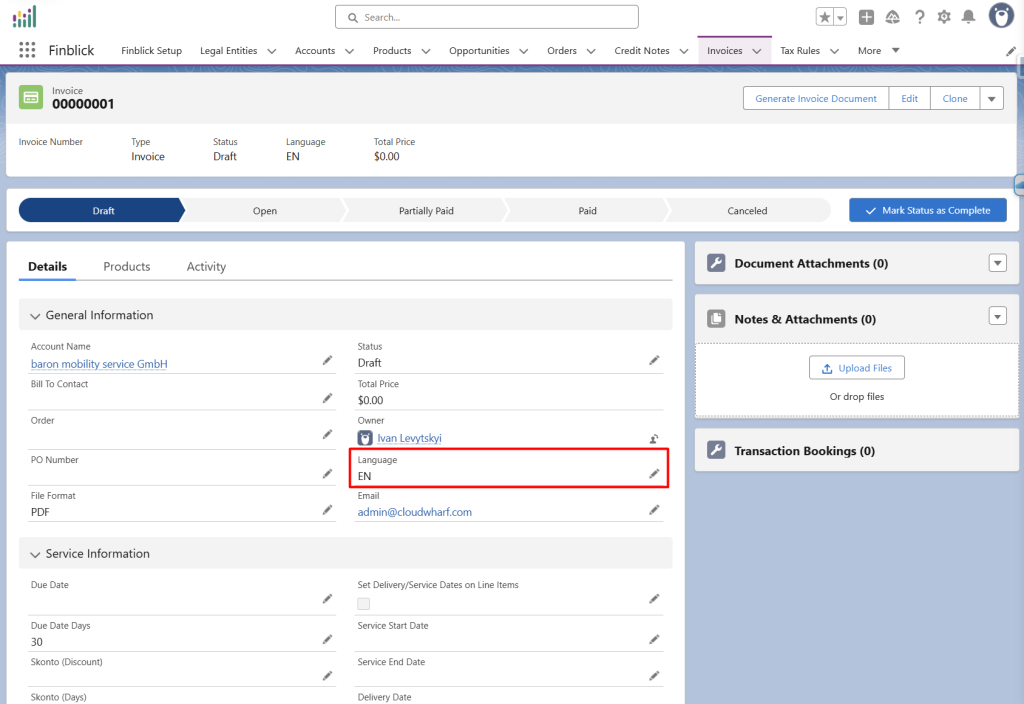
If the Language field is left blank, the value will be taken from the Default Language field on the Legal Entity object.
- Add an Invoice Line via Line Editor component and check that the Custom Product Name and Description fields are filled correctly, reflecting the values from the Product Descriptions object for the selected language.
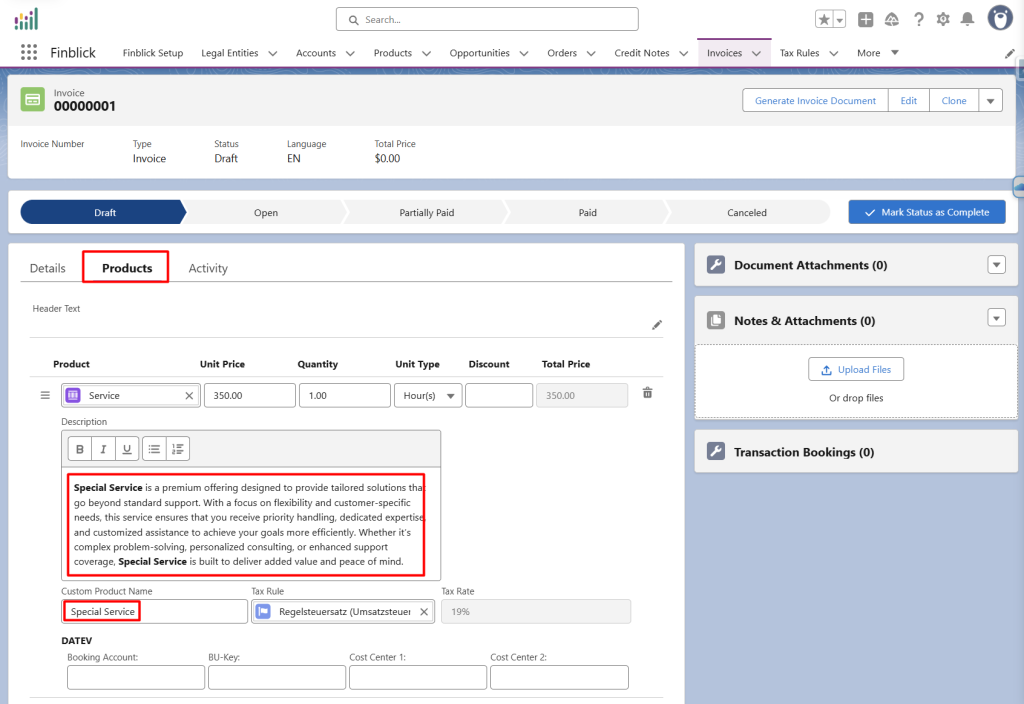
- Save the changes.
With these steps, multilingual product information can be efficiently managed, ensuring that financial documents display the correct names and descriptions for each customer.


