
The branding of financial documents can be customized to align with the corporate design. Various options are available to tailor the document templates, allowing adjustments to colors, logos, fonts, and other visual elements.
Step-by-Step Guide to Customizing Branding on Financial Documents #
- Open the Legal Entities tab:
- In the Salesforce environment, go to the Legal Entities tab.
- Open the Legal Entity record:
- By default, there is one record created using predefined data from the Salesforce organization.
- Click on this record to open it.
- Switch to the Template & Branding tab:
- Within the Legal Entity record, click on the Template & Branding tab.

- Customize the branding information:
- Under the Branding section, the following fields can be configured:
- Brand Color: Enter the color value in HEX or RGB format.
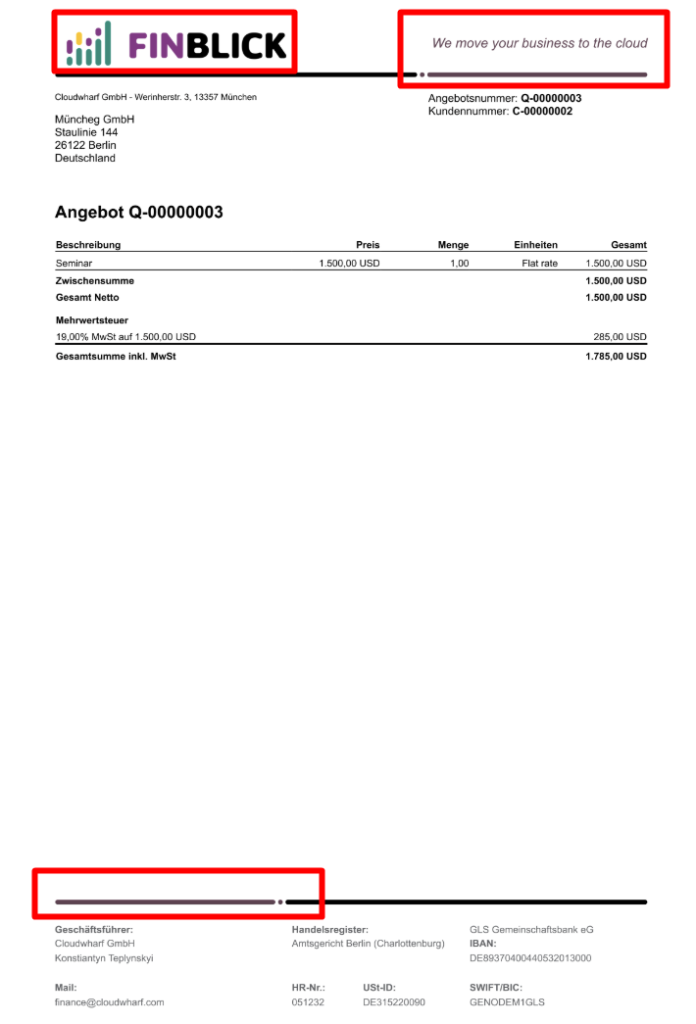
- Brand Slogan: Add a free text message that will appear in the top-right corner of the document.
- Font: Choose from a list of predefined fonts used in the templates.
- Logo URL: Enter the public link to the company logo, which will appear in the top-left corner of the document. (The link must be publicly accessible.)
- Under the Branding section, the following fields can be configured:

- View Document Preview:
- Check the preview of the document to review the changes and ensure everything is displayed correctly.
No publicly accessible URL for the company logo? If a publicly accessible URL is not available, a guide on how to create one in Salesforce is provided: Salesforce Help
Want to customize the branding even more? Further customizations can be learned later in this installation guide under Customizing Document Templates article. For even more polished documents, the guide should simply be continued.👩🏻🎨


